Posts

Showing posts with the label Sony Vegas Pro

4 Steps to Video Editing On-the-Fly
Image
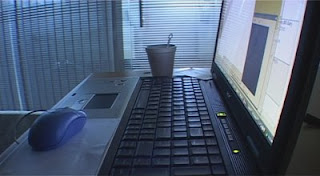
This is a picture of my old but trusty video editing Acer laptop. Though it has Sony Vegas Pro 8, I am using Vegas 4 for speedier delivery. I am in a little dark corner of a room with a cup of hot tea, editing the video of a training workshop which is going on right now. Video editing on the fly is required when client wants to watch the video at the end of the day. Here are 4 steps to produce a video quickly: Plan the video sequence: Study the event program. Rearrange the sequence to form an interesting storyline. Start and end with a bang. Leave the light moments in between. Draw a flow chart on paper. Shoot for edit: With the video sequence flow chart on hand, shoot the video exactly how you want the shot to appear. Take extra footages for more choice. Cover at least 3 main shots: wide, mid and close-up. Edit ruthlessly: Editing takes up the most time. Select your best shots quickly and cut away the rest. Pre-layout the video sequence using text clips. Slot in the visuals whe...
Sony Vegas Pro 9 Coming Soon!

Image
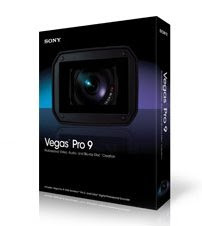
I just received news that Sony Vegas Pro 9 is just around the corner! The new tagline: "Professional Video, Audio and Blu-ray Disc Creation". The Sony Vegas Pro 9 integrates two powerful applications that work together to provide an efficient environment for video professionals. It offers robust and progressive platform for content creation and production. Get ready to buy Sony Vegas Pro 9 Professional Video Editing Software. New features in Sony Vegas Pro 9 include: New user interface for optimized color viewing and enhanced usability Native XDCAM EX reading and import Open and edit RED ONE™ files on the timeline 4K project support, up to 4096 x 4096 New Gradient Wipe transition New Glint, Rays, Defocus, Starburst, Soft Contrast and Fill Light video effects Support for Gigapixel-size images Includes native 32- and 64-bit versions of Vegas Pro 9 software With broad format support, superior effects processing, unparalleled audio support, and a full complement of editorial ...

Event Pan/Crop Window Too Small… Sony Vegas Pro 8 Tutorial

Image
Here’s a sticky problem I get asked frequently by new Sony Vegas users. You may encounter it sometimes. Is your Event Pan/Crop window stuck in a tiny area with the rest of the Sony Vegas Windows? Do you want to make the Event Pan/Crop window bigger or open it in a new window? (You cannot do much with Pan/Crop effect in such a tight space.) Here’s how to get it out…

Extracting Videos From a DVD to MPG

Image
Do you want to edit a DVD or maybe take out a part of the DVD to be edited with other video footages? Do you know that you do not need to buy any software to extract video clips from a DVD? You can even do it yourself. All you need is your PC with a DVD drive. In this video tutorial, you will learn how to extract video from a DVD using a PC running on Windows XP. Steps to extract videos from a DVD... How to Extract Video from a DVD for Editing

Sony Vegas Pro 8 Tutorial - Missing Keyframe In Text Generator

Image
Missing Keyframe In Text Generator - Sony Vegas Pro 8 Tutorial Missing keyframe control panel in your text generator? It was there yesterday and now it is gone? Want to know how to set it back and turn it on again? Very easy. Here is how to turn back on the keyframe control panel in the text generator of Sony Vegas Pro 8. Watch Video Here...

Learn Videography in 5 Days

Image
Success! My first apprentice videographer completed a S$700 event videography job in 5 days. That was a real live assignment while learning on the job. There was a little cheating though. I was there guiding all the time. What do you expect! I am the mentor. This is my very first mentoring experience as a Videographer . Read more here... Videography Course - Learn Videography in 5 Days

Voted Best Again at Yahoo Answers

How to Resize Video for Rendering - Sony Vegas Pro 8 Tutorial Yay! Voted best answer again at Yahoo Answers. A question was asked on how to resize a WMV V9 format video for rendering using Sony Vegas Pro 8. Here is my quick answer… Resizing video for rendering to WMV V9 format. 1. Select “Render As” 2. Select “Save as type:” > “Windows Media Video V9 (*.wmv)” 3. Click button “Custom…” 4. Click tab “Video” 5. Select “Image size:” > “(Custom)” 6. Change Width and Height to desired size. 7. Click “OK” Enjoy! Adrian Lee Blog - http://Adrian.VideoLane.net Product - http://InstantViralVideo.com Service - http://VideoLane.com

Shot with Sony HDR-SR8. Edited with Sony Vegas Pro.

Image
VideoLane.com presents... "Rats Steal Tarts" - A stop motion animation for the Chinese New Year 2008 celebration, the year of the rat. Produced by Adrian and Cheryl Lee. Shot with Sony HDR-SR8. Edited with Sony Vegas Pro. Edited on Acer Laptop. Starring chinese new year food stuff, chocolate rats and pineapple tarts. Thanks for watching! :) http://www.lulu.tv/?p=21774 Adrian Lee http://videolane.com/ http://videolane.blip.tv/ http://instantviralvideo.com/ http://adriansjournal.blogspot.com/

Sony Vegas Pro 8 Tutorial - Multicamera Editing

Image
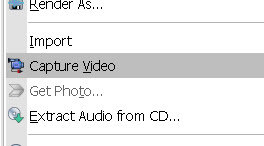
Sony Vegas Pro 8 makes it easier to edit videos from different cameras right from the timeline. You can capture and edit video for a single scene from 2 or more cameras or for a single scene shot a few times with one camera. Here is a tutorial of a Multicamera Edit of a drama I shot. The drama was acted out four times to the public and being a non-profit organization, the client have budget only for one videographer. For each of the 4 acts, the camcorder (Sony HDR-FX7 High Definition Camcorder) was placed at 4 different positions and shot in various angles. Multicamera edit is accomplished in only 8 steps with the Sony Vegas Pro 8. Step #1: Capture Multicamera Video Clips Use the normal Sony Vegas Video Capture function to capture recordings from each camera. Give each capture filename a unique name. Enable scene detection before capturing so that each segment is captured as a separate clip. Step #2 : Layout Video Clips on Timeline Drag and drop video clips over each other on the...

Sony Vegas Pro 8 Tutorial: New Installation Instruction

Image
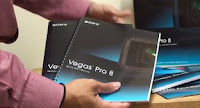
Finally, 2 weeks after winning the Sony Vegas Pro 8 , I found the time to install the video editing software on my video production laptop. Watch the video here... http://revver.com/video/589596/sony-vegas-pro-8-installation-instruction/ Inside the Sony Vegas box , you will find: 1. Installation CD 2. Serial Number and 3. Four manuals. Installation is quick and easy : 1. Insert installation CD. 2. Click "Install Vegas Pro 8". 3. Wait for Microsoft .NET Framework to install first (this took a very long time, more than 15 minutes). 4. Read and agree to the End-User License Agreement. 5. Wait for Sony Vegas Pro 8 software to install. 6. Go to Start and Run Vegas Pro 8. 7. Key in Serial Number. That's it and the program starts. Thanks for watching! :) http://www.lulu.tv/vlog/videolane Adrian Lee http://videolane.com/ http://instantviralvideo.com/ http://youtube.com/videolane http://adriansjournal.blogspot.com/ PS: Learn the secrets of dvd and internet video production, sign u...

How To Shoot and Edit a Film Festival Awards DVD Video...

I just completed and uploaded my latest video assignment. Please watch it here... http://www.videolane.com/?Videos:Asian_First_Films_2007 It is a star-studded Awards Ceremony for the Asian Festival of First Films organized by Teamwork Productions in Singapore on 4 December 2007 at Jubilee Hall, Raffles Hotel. Here is what I have to do as a videographer working alone. THE EARLY BIRD I like to arrive 2 hours before the event starts. This gives me ample time to survey the place, watch the last minute rehearsals and find out the exact flow of the event. For recording stage shows, I will also need some time to plant my tripod on the best spot and hook up the sound feed to my camcorder. EAT THE SOUND Getting the sound feed means hooking up my camcorder audio input to the hall audio system's output. That is, instead of recording ambient surrounding noise, I have crisp clear sound recording from every microphone setup on stage. Got to do this early because I know lots of press media people...